In the previous article, we discussed the improvements we’ve made to the configuration of Wi-Fi access points to make it easier for users to connect. We’ve continued these improvements on the software side by completely redesigning our captive portal to provide intuitive guidance for first-time users. That is the focus of this new article.
What is the general purpose of a captive portail ?
It's a simplified browser that often opens automatically when you first connect to a public Wi-Fi network. You'll often find it in hotels, train stations, airports, cafes, shopping malls, or campgrounds.
It is used to accept the establishment’s terms of use, enter a password, or fill out a form. It allows the establishment to fulfill some of its legal obligations, display its brand, or collect users’ email addresses. It also allows the establishment to offer paid, time-limited access.
The Usefulness of the Captive Portal on a DataCup
The Wi-Fi network at a DataCup is open: no password is required to connect. We also do not collect any personal data. We therefore use our captive portal to facilitate the connection and improve the user experience.
Gather feedback from the field
All of these developments are the result of feedback we have received from the field in recent years. Indeed, the numerous deployments carried out in recent years have led us to engage with our partners in several French-speaking African countries, who have shared with us their firsthand experiences working with beneficiaries.
We now have more information about the people who connect to the DataCup. Among DataCup users and beneficiaries, some people do not know what a URL is, what a web browser is, or the difference between Wi-Fi and the Internet. Cell phones are very widespread, but usage varies greatly from one group to another. The interface of our embedded portal must therefore be understandable to users with varying levels of knowledge.
For example, the portal initially recommended turning off mobile data, using a thumbs-up icon 🖒. Users naturally clicked on the thumbs-down icon, even though we expected them to turn off their mobile data. So we redesigned the UI (user interface) to better guide users.
We also consulted with our partners regarding the use of the captive portal. Initially, we had opted for immediate navigation without opening the browser—meaning users would access the site directly from the captive portal. However, this posed two major problems:
- When logging in for the first time, the user did not follow the standard navigation process on DataCup. The problem stems from the fact that if the user closes the captive portal, they cannot easily return to it. As a result, they find themselves stuck, unaware of the “actual” steps they need to take (opening a browser and entering the URL my.datacup).
- The captive portal does not offer all the features of a web browser; in particular, it does not allow users to go back to the previous page. Thus, as soon as a user opens an application such as Kolibri or Kiwix, he had no way of returning to the home page.
Field tests showed that the captive portal described above was confusing for users.
This feedback can sometimes be difficult to obtain because our equipment is deployed in remote areas, but it is invaluable for refining the features to meet local needs. We hope that this new presentation will make it easier for project managers and field coordinators to adopt the DataCup technology. We're really looking forward to getting more feedback on users' initial reactions so we can either confirm our decisions or adjust our changes.
Now let's take a closer look at what our new captive portal looks like and what features it offers.
Open the captive portal
When connecting to a DataCup's Wi-Fi for the first time, the captive portal opens automatically; on some devices, it will open once the user clicks on the Wi-Fi name.
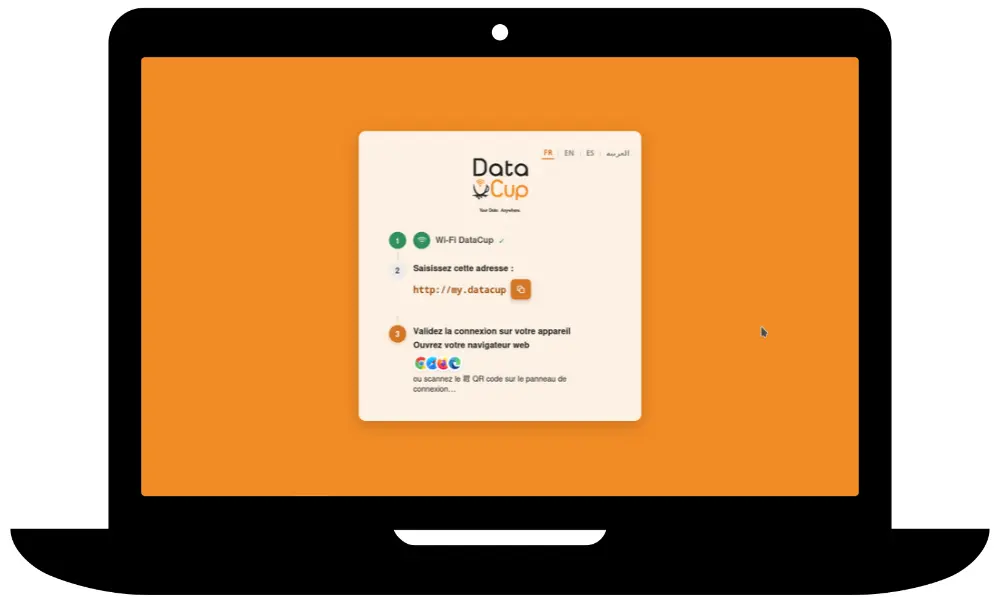
Our captive portal offers a three-step process, featuring clear and universal icons. The experience varies slightly depending on whether the user logs in using an Android smartphone, an iPhone, a tablet, or a computer: our captive portal therefore adapts to the user’s device.
Below is a preview on a smartphone:
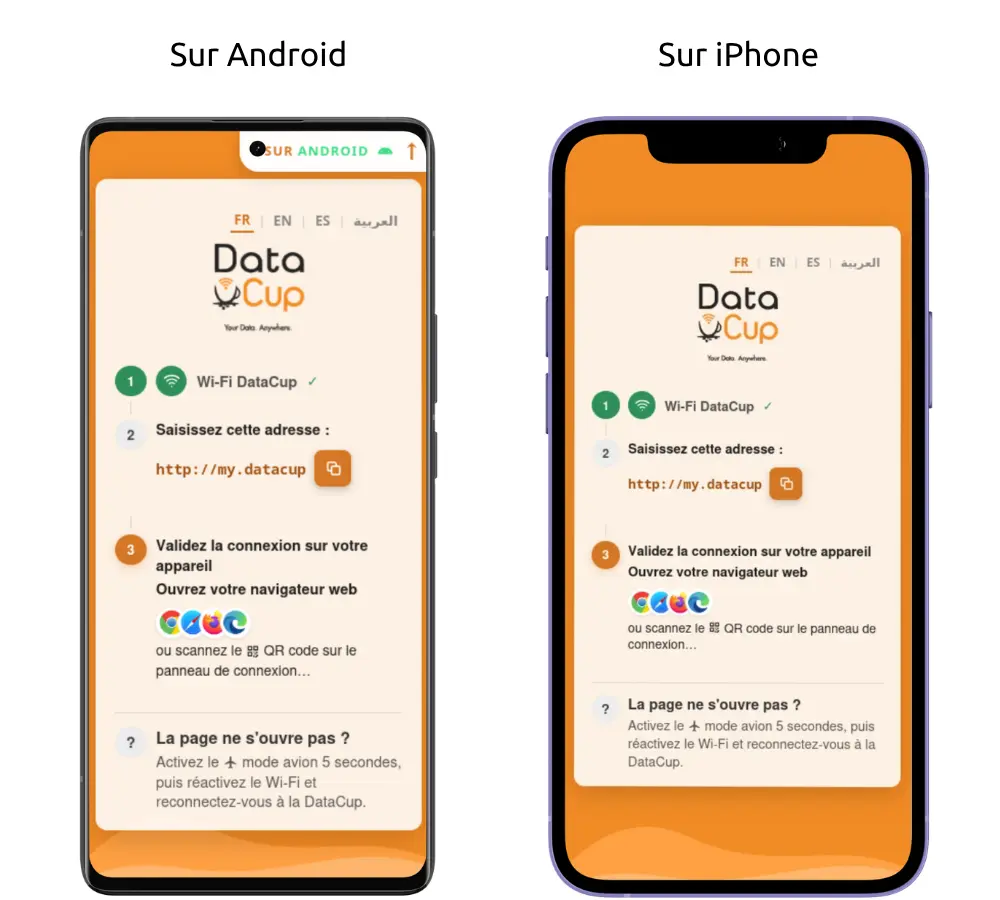
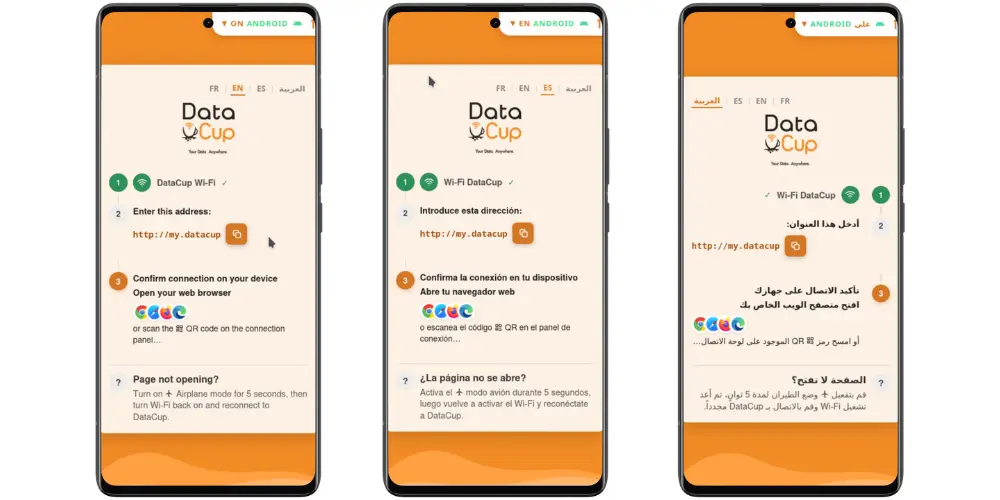
The captive portal is currently available in four languages: French, English, Spanish, and Arabic. It is easy to add new languages, particularly local languages with their specific alphabets.
Below is a preview on a computer:
Open your web browser
The first step is mainly to confirm Wi-Fi access. In the second step, we display the “Copy/Paste” icon, which allows users to copy the DataCup URL to the clipboard. For a novice user, this is much easier than having to remember the URL and then type it into their browser. All they need to do is open their favorite browser—which is already installed on their phone—and paste the URL into the address bar.
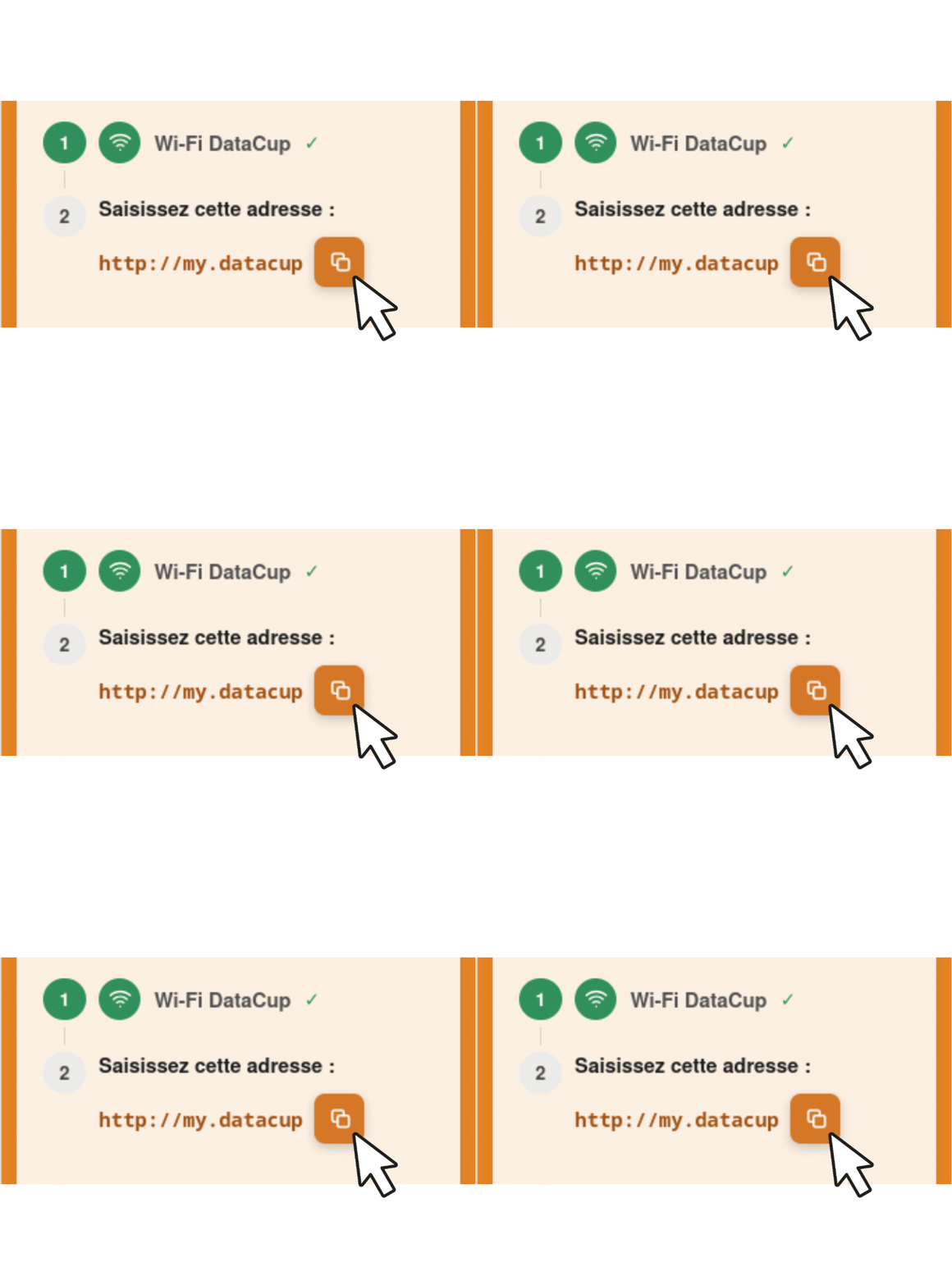
For security reasons, most devices do not allow the phone's default web browser to be opened from the captive portal—for example, via a shortcut or a hyperlink.
Users can also scan the QR code displayed on our login signs in the room where the DataCup is located. This will open their browser directly to the correct web address.
At this stage, we cannot rule out the possibility that the user may have successfully connected to Wi-Fi without turning off mobile data. We therefore remind you to enable Airplane Mode on smartphones and tablets to prevent the devices from attempting to connect to 3G/4G/5G mobile data. This can help prevent certain issues while browsing. Enabling Airplane Mode at this stage will disable Wi-Fi. The user will therefore need to repeat the steps from the beginning.
Enable the “Use this network as is” option
When the user connects to the DataCup Wi-Fi network, the phone automatically detects that there is no Internet access. Enabling the “Use this network as is” option allows unrestricted access to DataCup content: the device accepts the DataCup Wi-Fi network and remains connected to it without Internet access. This allows the user to enjoy their usual web experience without any error messages.
Tapping the animated orange arrow in the upper-right corner of the screen, just below the ⁝ menu, opens a pop-up that prompts the user to enable this option.
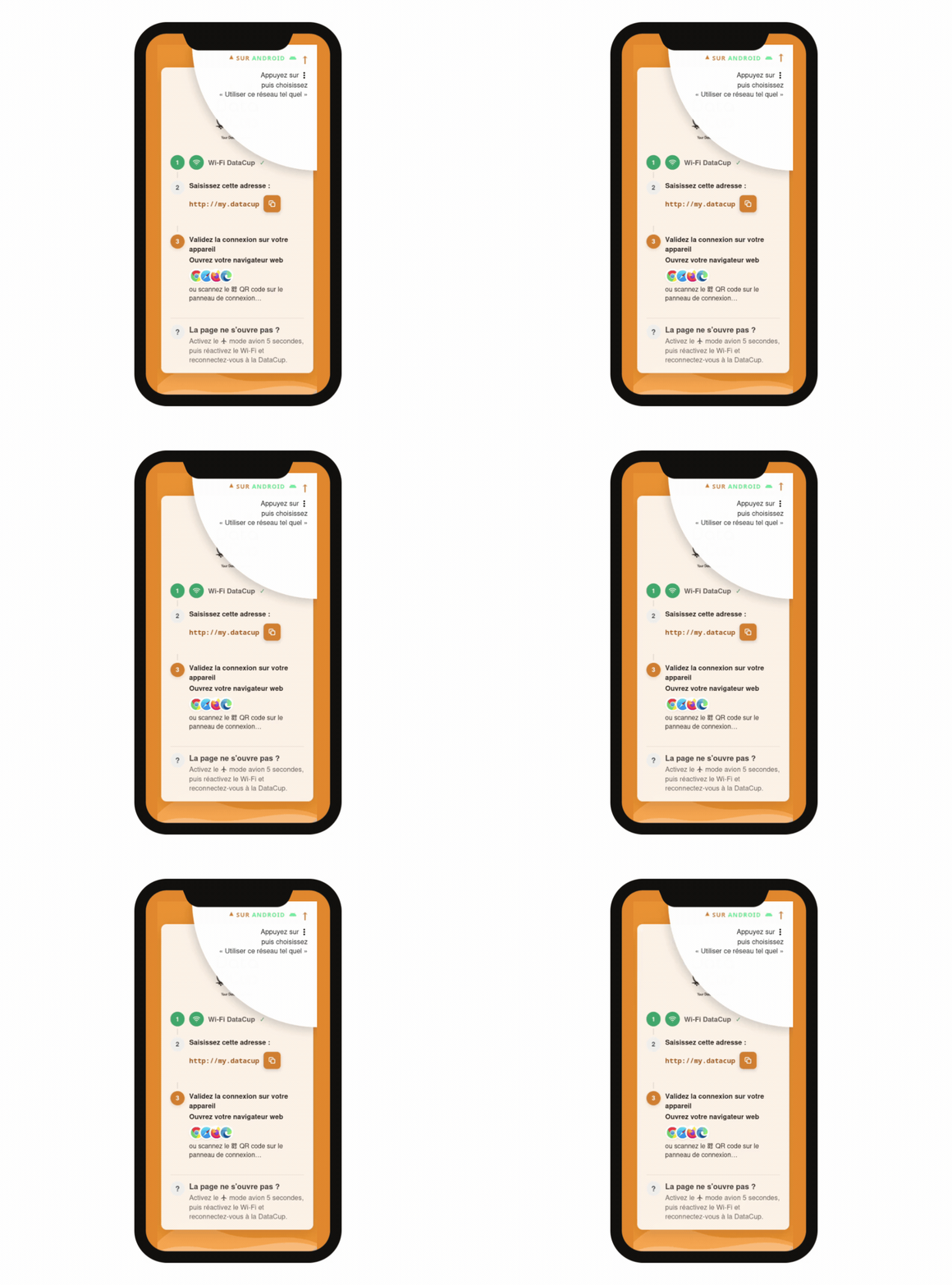
The pop-up also opens automatically right after the user copies the URL my.datacup.
Open the DataCup homepage
Once the user opens the URL my.datacup in their web browser, the home page of our embedded portal appears. It lists the various applications available on DataCup. From the embedded portal, the user can also change the language, perform a search, and enable text-to-speech.
Learn more about the available features...
Let's get started with hours of access to knowledge—with no data charges!
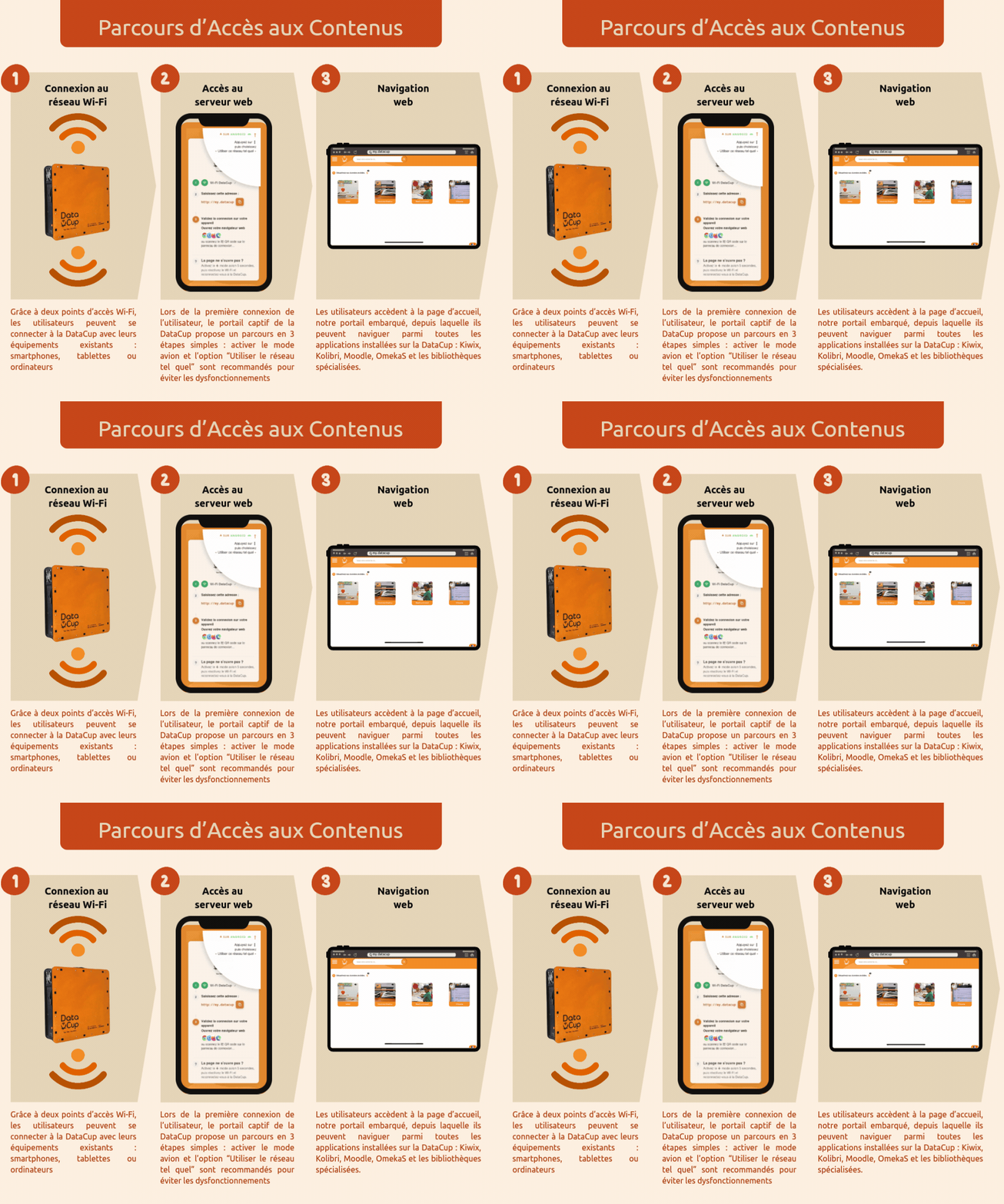
In summary, here are the different steps involved in accessing content on DataCup:
Take advantage of this new captive portal
This captive portal will be automatically deployed on all new DataCup devices running version 6.
Finally, like many software enhancements, this new portal can also be updated on older DataCup*. So please feel free to contact customer support to take advantage of this offer.
* Des frais peuvent s’appliquer. Compatibilité des mises à jour à confirmer selon votre matériel.
 Duddal
 SOS Village d'Enfants Niger


New: Our Captive Portal Has a Brand-New Look!